
The Account section is where the player can either register or sign into an account. If a player is logged in, they can Save their current progress, as well as Load and merge any save data on the same account on other devices. By selecting More, options will be given to Refresh Login (change account), Manage Account (redirects to an external page), and Unlink Account (sign out).
Settings: Difference between revisions
Jump to navigation
Jump to search
geometrydash.wiki.gg>XSlayer300 m they're now orbs rob (check steam) |
Standardize prose spelling to Canadian English; preserve names, quotations and wiki syntax |
||
| (34 intermediate revisions by 9 users not shown) | |||
| Line 1: | Line 1: | ||
{{Quality}} | {{Quality}} | ||
[[File:Settings.png|right|270px]] | [[File:Settings.png|right|270px]]{{#setmainimage:Settings.png|quiet}} | ||
'''Settings''' can be accessed from the main menus of [[Geometry Dash]], [[Geometry Dash Lite]], [[Geometry Dash Meltdown]], [[Geometry Dash World]] and [[Geometry Dash SubZero]] using the gear button. Immediate options include the ability to adjust music and SFX volume. The [[Vault]] can be accessed from the padlock in the upper right corner of the screen, requiring 10 [[Collectibles|user coins]] to unlock it.<br clear="both"> | '''Settings''' can be accessed from the main menus of [[Geometry Dash]], [[Geometry Dash Lite]], [[Geometry Dash Meltdown]], [[Geometry Dash World]] and [[Geometry Dash SubZero]] using the gear button. Immediate options and settings include the ability to adjust music and SFX volume. The [[Vault]] can be accessed from the padlock in the upper right corner of the screen, requiring 10 [[Collectibles|user coins]] to unlock it.<br clear="both"> | ||
<tabber> | <tabber> | ||
Account= | Account= | ||
The ''Account'' section is where the player can either register or sign into an [[User Accounts|account]]. If a player is logged in, they can Save their current progress, as well as Load and merge any save data on the same account on other devices. By selecting More, options will be given to Refresh Login (change account), Manage Account (redirects to an external page), and Unlink Account (sign out). | |||
<gallery mode="packed"> | |||
SettingsAccountA.png | |||
SettingsAccountB.png | |||
The ''Account'' section is where the player can either register or sign into an [[User Accounts|account]]. If a player is logged in, they | SettingsAccountLogin.png | ||
SettingsAccountRegister.png | |||
</gallery> | |||
|-| | |-| | ||
How to play= | How to play= | ||
The ''How to play'' section contains basic instructions for playing Geometry Dash. It has not been updated since the game's initial release. The following content has been directly replicated from the game. | The ''How to play'' section contains basic instructions for playing Geometry Dash. It has not been updated since the game's initial release. The following content has been directly replicated from the game. | ||
<gallery | <gallery mode="packed"> | ||
HowToPlay01.png|'''<span style="color: | HowToPlay01.png|'''<span style="color:lime;">Tap</span> the screen to jump.<br><span style="color:lime;">Hold</span> down to keep jumping.''' | ||
HowToPlay02.png|'''<span style="color: | HowToPlay02.png|'''<span style="color:lime;">Hold</span> to fly up.<br><span style="color:lime;">Release</span> to fly down.''' | ||
HowToPlay03.png|'''You can enter [[Practice Mode|practice mode]] from the pause menu.<br>Practice mode lets you place <span style="color: | HowToPlay03.png|'''You can enter [[Practice Mode|practice mode]] from the pause menu.<br>Practice mode lets you place <span style="color:lime;">checkpoints</span>.''' | ||
HowToPlay04.png|'''You can place checkpoints manually, or use the auto-checkpoint feature.<br>Tap the delete button to remove your last checkpoint.''' | HowToPlay04.png|'''You can place checkpoints manually, or use the auto-checkpoint feature.<br>Tap the delete button to remove your last checkpoint.''' | ||
HowToPlay05.png|'''[[Objects|Jump Orbs]] activate when you are on top of them.<br><span style="color: | HowToPlay05.png|'''[[Objects|Jump Orbs]] activate when you are on top of them.<br><span style="color:lime;">Tap</span> while touching a ring to perform a ring jump.''' | ||
</gallery> | </gallery> | ||
|-| | |-| | ||
Options= | Options= | ||
[[File: | [[File:SettingsOptionsGameplay.png|right|270px]] | ||
[[File: | [[File:SettingsOptionsVisual1.png|right|270px]] | ||
[[File: | [[File:SettingsOptionsVisual2.png|right|270px]] | ||
[[File: | [[File:SettingsOptionsPractice.png|right|270px]] | ||
[[File: | [[File:SettingsOptionsPerformance.png|right|270px]] | ||
[[File: | [[File:SettingsOptionsAudio.png|right|270px]] | ||
[[File: | [[File:SettingsOptionsOther.png|right|270px]] | ||
The ''Options'' section contains a variety of options allowing the player to configure certain features to | [[File:SettingsOptionsKeyBindings.png|right|270px]] | ||
[[File:PracticeShowHitboxes.png|right|270px]] | |||
The ''Options'' section contains a variety of options allowing the player to configure certain features to optimize gameplay and performance. | |||
*'''Keys:''' Displays a menu showing the configured key bindings. (Steam only) | *'''Keys:''' Displays a menu showing the configured key bindings. (Steam only) | ||
*'''GameCenter:''' Connects the game to Game Center. (iOS only) | *'''GameCenter:''' Connects the game to Game Center. (iOS only) | ||
| Line 34: | Line 38: | ||
''Gameplay Settings'' | ''Gameplay Settings'' | ||
*'''Auto-Retry:''' Automatically respawns the player after every crash. When deactivated, a popup showing the percentage achieved appears instead. ''This is enabled by default.'' | *'''Auto-Retry:''' Automatically respawns the player after every crash. When deactivated, a popup showing the percentage achieved appears instead. ''This is enabled by default.'' | ||
*'''Enable Faster Reset:''' Restarts in 0.5 | *'''Enable Faster Reset:''' Restarts in 0.5 seconds instead of 1.0 second upon death. | ||
*'''Click Between Steps:''' Toggles substeps on, allowing you to click in between the default normal steps. This may affect performance. | |||
*'''Click On Steps:''' Allows you to click on every step, regardless of your refresh rate. This is beneficial for users below 240 Hz. | |||
*'''Lock Cursor In-Game:''' Locks and hides cursor during gameplay. (Steam only) | |||
*'''Flip 2-Player Controls:''' Flips which side controls which player during 2-player mode. | |||
*'''Always Limit Controls:''' Limits Player 1 controls to one side even when dual mode is inactive. | |||
*'''Disable Thumbstick:''' Disables mouse movement using the controller thumbstick. (Steam only) | |||
*'''Enable Quick Keys:''' Enables some quick temporary bindings until full customization later. Use 'R' for reset, 'CTRL + R' for full reset, and 'P' to toggle hitboxes in practice mode. (Steam only) | |||
''Visual Settings'' | |||
*'''Show Cursor In-Game:''' Shows cursor and pause button during gameplay. (Steam only) | *'''Show Cursor In-Game:''' Shows cursor and pause button during gameplay. (Steam only) | ||
*'''Hide Attempts:''' Hides the attempt counter when playing levels. | *'''Hide Attempts:''' Hides the attempt counter when playing levels. | ||
*'''Flip pause button:''' Repositions the pause button from the upper right side to the upper left side of the screen. | *'''Flip pause button:''' Repositions the pause button from the upper right side to the upper left side of the screen. | ||
| Line 43: | Line 54: | ||
*'''Disable Orb Scale:''' Disables the scaling effect on all orbs. | *'''Disable Orb Scale:''' Disables the scaling effect on all orbs. | ||
*'''Disable Trigger Orb Scale:''' Disables the scaling effect on only trigger orbs. | *'''Disable Trigger Orb Scale:''' Disables the scaling effect on only trigger orbs. | ||
*'''Disable explosion shake:''' Disables the | *'''Disable shake:''' Disables shake effects. | ||
*'''Disable explosion shake:''' Disables the shake effect that happens upon death. | |||
*'''Disable Gravity Effect:''' Disables the effect that happens upon changing gravity. | *'''Disable Gravity Effect:''' Disables the effect that happens upon changing gravity. | ||
*'''Default Mini Icon:''' The mini cube and mini ball | *'''Default Mini Icon:''' The mini-cube and mini-ball are set to their default skin before [[Update 2.1]]. | ||
*'''Switch Spider Teleport | *'''Switch Spider Teleport Colour:''' The spider teleport effect's colour can be toggled between Player Colour 1 or 2. When unchecked, it will use the player's secondary colour. | ||
*'''Switch Dash Fire | *'''Switch Dash Fire Colour:''' The fire that appears when using a dash ring can be toggled between Player Colour 1 or 2. When unchecked, it will use the player's secondary colour. | ||
*'''Switch Wave Trail | *'''Switch Wave Trail Colour:''' The wave trail colour can be toggled between Player Colour 1 or 2. When unchecked, it will use the player's secondary colour. | ||
*''' | *'''Hide Playtest text:''' Hides text in the top left when using start positions or ignore damage. | ||
''Practice Settings'' | ''Practice Settings'' | ||
*'''Hide Practice Buttons:''' Hides the checkpoint buttons shown in | *'''Hide Practice Buttons:''' Hides the checkpoint buttons shown in practice mode. | ||
*'''Hide Attempts:''' Hides the attempt counter when playing levels in | *'''Hide Attempts:''' Hides the attempt counter when playing levels in practice mode. | ||
*'''Enable Auto-Checkpoints:''' Automatically places checkpoints while in | *'''Enable Auto-Checkpoints:''' Automatically places checkpoints while in practice mode. The rate varies depending on the form the player uses. ''This is enabled by default.'' | ||
*'''Enable Quick Checkpoints:''' Increases the frequency of automatic checkpoint placement in | *'''Enable Quick Checkpoints:''' Increases the frequency of automatic checkpoint placement in practice mode. | ||
*'''Enable Death Effect:''' Shows death effects in | *'''Enable Death Effect:''' Shows death effects in practice mode. | ||
*'''Enable Normal Music in Editor:''' Plays normal music in sync to editor levels in | *'''Enable Normal Music in Editor:''' Plays normal music in sync to editor levels in practice mode. | ||
*'''Show Hitboxes:''' Shows hitboxes while in | *'''Show Hitboxes:''' Shows hitboxes while in practice mode. | ||
*'''Disable Player Hitbox:''' Disables the player's hitbox in | *'''Disable Player Hitbox:''' Disables the player's hitbox in practice mode (if hitboxes are shown). | ||
''Performance Settings'' | ''Performance Settings'' | ||
*'''Increase Draw Capacity:''' Increases draw capacity for batch nodes at level start. Can improve performance on some levels, but may cause issues on low-end devices. | *'''Increase Draw Capacity:''' Increases draw capacity for batch nodes at level start. Can improve performance on some levels, but may cause issues on low-end devices. | ||
*'''Disable High Object Alert:''' Removes the alert shown when starting levels with a high object count. | *'''Disable High Object Alert:''' Removes the alert shown when starting levels with a high object count. | ||
*'''Increase Maximum Levels:''' Increases maximum locally saved levels from 10 to 100. This refers to level data, not statistics. Enabling this can make your save file considerably larger, so | *'''Increase Maximum Levels:''' Increases maximum locally saved levels from 10 to 100. This refers to level data, not statistics. Enabling this can make your save file considerably larger, so keeping the option off is recommended for quicker saving. | ||
*'''Save Gauntlets:''' Saves gauntlet levels locally so they do not have to be redownloaded. Increases save time but helpful if you have poor connection. | *'''Save Gauntlets:''' Saves gauntlet levels locally so they do not have to be redownloaded. Increases save time but is helpful if you have a poor connection. | ||
*'''Enable Low Detail:''' Enables low detail mode on levels that support it automatically. | *'''Enable Low Detail:''' Enables low detail mode on levels that support it automatically. | ||
*'''Enable Extra LDM:''' Removes glow and enter effects while in low detail mode. Levels without LDM show LDM lite. | *'''Enable Extra LDM:''' Removes glow and enter effects while in low detail mode. Levels without LDM show LDM lite. | ||
*'''Disable Level Saving:''' Saves level statistics as usual, but levels need to be | *'''Disable Level Saving:''' Saves level statistics as usual, but levels need to be redownloaded every time you restart the game. Makes saving and loading faster. | ||
*'''Disable Shader Anti-Aliasing:''' Disables anti-aliasing on shader effects. | *'''Disable Shader Anti-Aliasing:''' Disables anti-aliasing on shader effects. | ||
''Audio Settings'' | ''Audio Settings'' | ||
| Line 76: | Line 85: | ||
*'''No Song Limit:''' Stops automatic deletion of custom songs. This is done by default to save space. | *'''No Song Limit:''' Stops automatic deletion of custom songs. This is done by default to save space. | ||
*'''Reduce Quality (Read Info):''' Lowers audio sampling rate from 44100 Hz to 24000 Hz. Requires restarting to take effect. | *'''Reduce Quality (Read Info):''' Lowers audio sampling rate from 44100 Hz to 24000 Hz. Requires restarting to take effect. | ||
*'''Audio Fix 01:''' Increases the audio buffer size, which may fix certain issues. Do not enable if audio is working fine. Causes a | *'''Audio Fix 01:''' Increases the audio buffer size, which may fix certain issues. Do not enable if audio is working fine. Causes a slightly longer audio delay. Requires restarting to take effect. | ||
*'''Music Offset (MS):''' Adjusts the offset of the audio in milliseconds should device issues cause it to become | *'''Music Offset (MS):''' Adjusts the offset of the audio in milliseconds, should device issues cause it to become unsynchronized with the level. | ||
*'''Debug:''' Shows Fmod debug. | *'''Debug:''' Shows Fmod debug. | ||
*'''Saved:''' Shows a list of the downloaded custom songs with options to play or delete them, or by selecting ''More'', view links to download each soundtrack as well as links to composers' profiles on Newgrounds, Facebook, and YouTube. | *'''Saved:''' Shows a list of the downloaded custom songs with options to play or delete them, or by selecting ''More'', view links to download each soundtrack as well as links to composers' profiles on Newgrounds, Facebook, and YouTube. | ||
| Line 83: | Line 92: | ||
*'''More Comments:''' Increases the number of comments per page from 20 to 40. | *'''More Comments:''' Increases the number of comments per page from 20 to 40. | ||
*'''Load Comments:''' Loads comments automatically. | *'''Load Comments:''' Loads comments automatically. | ||
*'''New Completed Filter:''' Makes completed levels filter based only on | *'''New Completed Filter:''' Makes the completed levels filter based only on percentage from Update 2.1. Useful to rebeat levels for Mana Orbs. | ||
*'''Increase Local Levels Per Page:''' Increases created and saved levels per page from 10 to 20. | *'''Increase Local Levels Per Page:''' Increases created and saved levels per page from 10 to 20. | ||
*'''Manual Level Order:''' Places new levels last in the saved levels list. Useful if you want to | *'''Manual Level Order:''' Places new levels last in the saved levels list. Useful if you want to move levels to the top manually. | ||
*'''Percentage Decimals:''' Shows decimals in level progress. | *'''Percentage Decimals:''' Shows decimals in level progress. | ||
*'''Show Leaderboard | *'''Show Leaderboard Percentage:''' Toggles viewing the leaderboard percentage you have on levels. To upload your level progress to the level leaderboard, you need to replay levels completed before Update 2.11. | ||
*'''Do Not...:''' This option flips the attempt counter and level complete message. In addition, the New Best message is replaced with death messages, listed at | *'''Do Not...:''' This option flips the attempt counter and level complete message. In addition, the New Best message is replaced with death messages, listed at the bottom of this page. There is also a new set of completion messages (also listed). This option is the only humorous option and, as the information says, does not do anything important. | ||
*'''Confirm Exit:''' Adds an extra confirmation window when exiting levels. | *'''Confirm Exit:''' Adds an extra confirmation window when exiting levels. | ||
*'''Fast Menu:''' Makes transitions between menu pages faster. | *'''Fast Menu:''' Makes transitions between menu pages faster. | ||
*'''Parental Control:''' Disables comment viewing and posting on [[User Accounts|profiles]] and [[User Levels|user levels]], and shows only featured levels. | *'''Parental Control:''' Disables comment viewing and posting on [[User Accounts|profiles]] and [[User Levels|user levels]], and shows only featured levels. | ||
|-| | |-| | ||
Graphics= | Graphics= | ||
[[File:SettingsGraphics.png|right|270px]] | [[File:SettingsGraphics.png|right|270px]] | ||
[[File:SettingsGraphicsAdvanced.png|right|270px]] | [[File:SettingsGraphicsAdvanced.png|right|270px]] | ||
The ''Graphics'' section, only | The ''Graphics'' section, available only on the Steam version of Geometry Dash, allows graphics quality to be adjusted to optimize performance further. | ||
*'''Fullscreen:''' Changes the display to | *'''Fullscreen:''' Changes the display to utilize the entire screen. | ||
*'''Borderless:''' If you click out of the screen, the game | *'''Borderless:''' If you click out of the screen, the game does not hide. | ||
*'''Windowed resolution:''' Determines the size of the screen in windowed mode, ranging from 640×480 to 1920×1080 or 2560x1600 widescreen. | *'''Windowed resolution:''' Determines the size of the screen in windowed mode, ranging from 640×480 to 1920×1080 or 2560x1600 widescreen. | ||
*'''Texture quality:''' Determines the graphics quality, configurable between Low, Medium, High or Auto. | *'''Texture quality:''' Determines the graphics quality, configurable between Low, Medium, High or Auto. | ||
;Advanced options | ;Advanced options | ||
*'''Vertical Sync:''' Makes | *'''Vertical Sync:''' Makes optimizations to prevent screen tearing, although it can increase lag. | ||
*'''Smooth Fix:''' Makes | *'''Smooth Fix:''' Makes optimizations to prevent screen tearing, although it can increase lag. | ||
*'''Show FPS:''' Shows frames per second while playing. | *'''Show FPS:''' Shows frames per second while playing. | ||
*'''Unlock FPS:''' Lets you set a custom target frames per second. Automatically disabled when vertical sync is enabled. | *'''Unlock FPS:''' Lets you set a custom target frames per second. Automatically disabled when vertical sync is enabled. | ||
| Line 128: | Line 121: | ||
Songs= | Songs= | ||
[[File:SettingsSoundtracks.png|right|270px]] | [[File:SettingsSoundtracks.png|right|270px]] | ||
The ''Songs'' section, or ''Soundtracks'' when accessed, presents a list of the official soundtracks | The ''Songs'' section, or ''Soundtracks'' when accessed, presents a list of the game's official soundtracks and their respective composers. Viewing items provides links to download each soundtrack as well as links to composers' profiles on Newgrounds, Facebook, Instagram, and YouTube. | ||
|-| | |-| | ||
Help= | Help= | ||
[[File:SettingsSupport.png|right|270px]] | [[File:SettingsSupport.png|right|270px]] | ||
The ''Help'' section, or ''Support'' when accessed, contains links to the [http://www.robtopgames.com RobTop Games] and [http://www.cocos2d-x.org Cocos2d-X] websites, along with links to an FAQ and a support email prompter addressed to the [[Robert Topala|developer]]. A ''Low Detail Mode'' option can be toggled | The ''Help'' section, or ''Support'' when accessed, contains links to the [http://www.robtopgames.com RobTop Games] and [http://www.cocos2d-x.org Cocos2d-X] websites, along with links to an FAQ and a support email prompter addressed to the [[Robert Topala|developer]]. A ''Low Detail Mode'' option can be toggled to disable interactive particle effects and reduce texture quality to improve device performance. A ''Req'' button that is visible only when logged in confirms the account's status as a level moderator. | ||
</tabber> | </tabber> | ||
==Trivia== | |||
*Enabling the 'Do Not...' setting in the Options menu will display special alternative messages upon death (in place of the 'New Best!' text) or upon completing a level (in place of the usual level complete message). | |||
<tabber> | <tabber> | ||
Death messages= | |||
<div style="column-count: | <div style="column-count:3;gap:1rem;"> | ||
*... | *... | ||
*A for effort | *A for effort | ||
| Line 231: | Line 223: | ||
*You ok? | *You ok? | ||
</div> | </div> | ||
|-|Level complete messages= | |-| | ||
<div style="column-count: | Level complete messages= | ||
<div style="column-count:3;gap:1rem;"> | |||
*AFK | *AFK | ||
*After a mental breakdown | *After a mental breakdown | ||
| Line 335: | Line 328: | ||
</div> | </div> | ||
</tabber> | </tabber> | ||
[[Category:Account features (base content)]] | |||
[[Category:Account features | |||
Latest revision as of 19:18, 11 October 2026

Settings.png
Settings can be accessed from the main menus of Geometry Dash, Geometry Dash Lite, Geometry Dash Meltdown, Geometry Dash World and Geometry Dash SubZero using the gear button. Immediate options and settings include the ability to adjust music and SFX volume. The Vault can be accessed from the padlock in the upper right corner of the screen, requiring 10 user coins to unlock it.


The How to play section contains basic instructions for playing Geometry Dash. It has not been updated since the game's initial release. The following content has been directly replicated from the game.
-
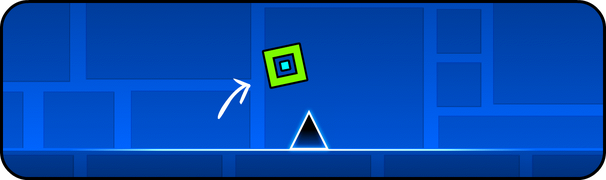 Tap the screen to jump.
Hold down to keep jumping. -
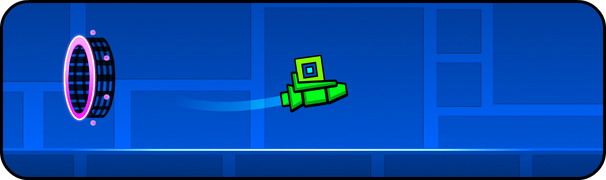 Hold to fly up.
Release to fly down. -

-
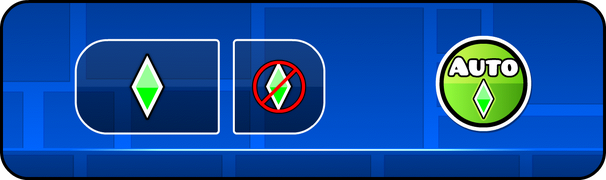 You can place checkpoints manually, or use the auto-checkpoint feature.
Tap the delete button to remove your last checkpoint. -


The Options section contains a variety of options allowing the player to configure certain features to optimize gameplay and performance.
- Keys: Displays a menu showing the configured key bindings. (Steam only)
- GameCenter: Connects the game to Game Center. (iOS only)
- Sign In: Connects the game to Google Play Games. (Android only)
Gameplay Settings
- Auto-Retry: Automatically respawns the player after every crash. When deactivated, a popup showing the percentage achieved appears instead. This is enabled by default.
- Enable Faster Reset: Restarts in 0.5 seconds instead of 1.0 second upon death.
- Click Between Steps: Toggles substeps on, allowing you to click in between the default normal steps. This may affect performance.
- Click On Steps: Allows you to click on every step, regardless of your refresh rate. This is beneficial for users below 240 Hz.
- Lock Cursor In-Game: Locks and hides cursor during gameplay. (Steam only)
- Flip 2-Player Controls: Flips which side controls which player during 2-player mode.
- Always Limit Controls: Limits Player 1 controls to one side even when dual mode is inactive.
- Disable Thumbstick: Disables mouse movement using the controller thumbstick. (Steam only)
- Enable Quick Keys: Enables some quick temporary bindings until full customization later. Use 'R' for reset, 'CTRL + R' for full reset, and 'P' to toggle hitboxes in practice mode. (Steam only)
Visual Settings
- Show Cursor In-Game: Shows cursor and pause button during gameplay. (Steam only)
- Hide Attempts: Hides the attempt counter when playing levels.
- Flip pause button: Repositions the pause button from the upper right side to the upper left side of the screen.
- Disable Portal Guide: Disables extra indicators on portals.
- Enable Orb Guide: Enables extra indicators on orbs.
- Disable Orb Scale: Disables the scaling effect on all orbs.
- Disable Trigger Orb Scale: Disables the scaling effect on only trigger orbs.
- Disable shake: Disables shake effects.
- Disable explosion shake: Disables the shake effect that happens upon death.
- Disable Gravity Effect: Disables the effect that happens upon changing gravity.
- Default Mini Icon: The mini-cube and mini-ball are set to their default skin before Update 2.1.
- Switch Spider Teleport Colour: The spider teleport effect's colour can be toggled between Player Colour 1 or 2. When unchecked, it will use the player's secondary colour.
- Switch Dash Fire Colour: The fire that appears when using a dash ring can be toggled between Player Colour 1 or 2. When unchecked, it will use the player's secondary colour.
- Switch Wave Trail Colour: The wave trail colour can be toggled between Player Colour 1 or 2. When unchecked, it will use the player's secondary colour.
- Hide Playtest text: Hides text in the top left when using start positions or ignore damage.
Practice Settings
- Hide Practice Buttons: Hides the checkpoint buttons shown in practice mode.
- Hide Attempts: Hides the attempt counter when playing levels in practice mode.
- Enable Auto-Checkpoints: Automatically places checkpoints while in practice mode. The rate varies depending on the form the player uses. This is enabled by default.
- Enable Quick Checkpoints: Increases the frequency of automatic checkpoint placement in practice mode.
- Enable Death Effect: Shows death effects in practice mode.
- Enable Normal Music in Editor: Plays normal music in sync to editor levels in practice mode.
- Show Hitboxes: Shows hitboxes while in practice mode.
- Disable Player Hitbox: Disables the player's hitbox in practice mode (if hitboxes are shown).
Performance Settings
- Increase Draw Capacity: Increases draw capacity for batch nodes at level start. Can improve performance on some levels, but may cause issues on low-end devices.
- Disable High Object Alert: Removes the alert shown when starting levels with a high object count.
- Increase Maximum Levels: Increases maximum locally saved levels from 10 to 100. This refers to level data, not statistics. Enabling this can make your save file considerably larger, so keeping the option off is recommended for quicker saving.
- Save Gauntlets: Saves gauntlet levels locally so they do not have to be redownloaded. Increases save time but is helpful if you have a poor connection.
- Enable Low Detail: Enables low detail mode on levels that support it automatically.
- Enable Extra LDM: Removes glow and enter effects while in low detail mode. Levels without LDM show LDM lite.
- Disable Level Saving: Saves level statistics as usual, but levels need to be redownloaded every time you restart the game. Makes saving and loading faster.
- Disable Shader Anti-Aliasing: Disables anti-aliasing on shader effects.
Audio Settings
- Change Custom Songs Location: Saves custom songs in a diffrent directory. May fix custom songs not working.
- Disable Song Alert: Removes the alert shown when starting levels without the song downloaded.
- No Song Limit: Stops automatic deletion of custom songs. This is done by default to save space.
- Reduce Quality (Read Info): Lowers audio sampling rate from 44100 Hz to 24000 Hz. Requires restarting to take effect.
- Audio Fix 01: Increases the audio buffer size, which may fix certain issues. Do not enable if audio is working fine. Causes a slightly longer audio delay. Requires restarting to take effect.
- Music Offset (MS): Adjusts the offset of the audio in milliseconds, should device issues cause it to become unsynchronized with the level.
- Debug: Shows Fmod debug.
- Saved: Shows a list of the downloaded custom songs with options to play or delete them, or by selecting More, view links to download each soundtrack as well as links to composers' profiles on Newgrounds, Facebook, and YouTube.
Other Settings
- More Comments: Increases the number of comments per page from 20 to 40.
- Load Comments: Loads comments automatically.
- New Completed Filter: Makes the completed levels filter based only on percentage from Update 2.1. Useful to rebeat levels for Mana Orbs.
- Increase Local Levels Per Page: Increases created and saved levels per page from 10 to 20.
- Manual Level Order: Places new levels last in the saved levels list. Useful if you want to move levels to the top manually.
- Percentage Decimals: Shows decimals in level progress.
- Show Leaderboard Percentage: Toggles viewing the leaderboard percentage you have on levels. To upload your level progress to the level leaderboard, you need to replay levels completed before Update 2.11.
- Do Not...: This option flips the attempt counter and level complete message. In addition, the New Best message is replaced with death messages, listed at the bottom of this page. There is also a new set of completion messages (also listed). This option is the only humorous option and, as the information says, does not do anything important.
- Confirm Exit: Adds an extra confirmation window when exiting levels.
- Fast Menu: Makes transitions between menu pages faster.
- Parental Control: Disables comment viewing and posting on profiles and user levels, and shows only featured levels.


The Graphics section, available only on the Steam version of Geometry Dash, allows graphics quality to be adjusted to optimize performance further.
- Fullscreen: Changes the display to utilize the entire screen.
- Borderless: If you click out of the screen, the game does not hide.
- Windowed resolution: Determines the size of the screen in windowed mode, ranging from 640×480 to 1920×1080 or 2560x1600 widescreen.
- Texture quality: Determines the graphics quality, configurable between Low, Medium, High or Auto.
- Advanced options
- Vertical Sync: Makes optimizations to prevent screen tearing, although it can increase lag.
- Smooth Fix: Makes optimizations to prevent screen tearing, although it can increase lag.
- Show FPS: Shows frames per second while playing.
- Unlock FPS: Lets you set a custom target frames per second. Automatically disabled when vertical sync is enabled.
The Rate button is a link that will redirect to the game's page on the relevant app store. An achievement is unlocked the first time this action is undertaken.

The Songs section, or Soundtracks when accessed, presents a list of the game's official soundtracks and their respective composers. Viewing items provides links to download each soundtrack as well as links to composers' profiles on Newgrounds, Facebook, Instagram, and YouTube.

The Help section, or Support when accessed, contains links to the RobTop Games and Cocos2d-X websites, along with links to an FAQ and a support email prompter addressed to the developer. A Low Detail Mode option can be toggled to disable interactive particle effects and reduce texture quality to improve device performance. A Req button that is visible only when logged in confirms the account's status as a level moderator.
Trivia
[edit | edit source]- Enabling the 'Do Not...' setting in the Options menu will display special alternative messages upon death (in place of the 'New Best!' text) or upon completing a level (in place of the usual level complete message).
- ...
- A for effort
- Again? Really?
- Almost...
- BOOM!
- Brutal
- Checkpoints, pls
- Click faster
- Combo Breaker!
- Continue?
- Crushed
- Dead, you are
- Denied
- Did he died?
- Dont be sad
- Don't quit your day job
- Explosion!
- Fail
- Feel the pain
- Game Over
- Geometry Dash'nt
- GGWP
- Give up
- Go?
- Go again
- Go home
- Hang in there
- Hehe...
- Hotel?
- I blame 240fps
- I like that part
- Insert coin
- Is that it?
- liaf uoy
- LOL
- Kappa
- Maybe jump?
- Need a Map?
- New Best'nt
- Nice crash
- Nice try
- Nope!
- Noscope
- Not 100%
- Not even close
- Not like this
- Not ok
- Oopsie
- One more?
- Over 1%!
- Ples omg why no
- PogChamp
- Problem?
- Rage time?
- RIP
- RobTop pls fix!
- RubRub?
- Slow down
- So close
- So far, so bad
- So random
- Spam?
- Spike: 1, You: 0
- Spike loves you.
- Stop testing gravity
- Take a break
- That looked painful
- That's progress for ya
- Time's Up!
- Too slow
- Try again?
- Try harder
- Try jump?
- U no like?
- Unlucky
- VAMOS
- Was that the plan?
- What!?
- Who buffed this?
- Who put that there?
- Who said GO?!
- Why jump there?
- Why tho?
- Wrong button
- Wrong way!
- Y u die?
- You Died
- You Lose
- You ok?
- AFK
- After a mental breakdown
- Are ya winning son?
- BASED
- BEHOLD, an endscreen comment!
- Big brain moment
- Boy that's cap
- BUT BRO, DO YOU EVEN LIFT!?
- Cool, now beat it with your eyes closed
- Did we win?
- do it again I wasn't looking
- Does anyone read this?
- Don't forget to thank the bus driver
- Dr. Click
- DROP THE BEAT
- el pepe
- EMERGENCY MEETING!!!
- F in the chat
- Fluked
- Harder than FNF
- Have you just... DASHED it???
- Haxxor?
- he protec
- Hmmmmmmmmmmm
- HOW
- HOW!?
- huhu yo
- I am Batman
- I am not not impressed
- I can't believe you've done this
- I cant hear the music.
- I have the highground
- I like ya cut G
- I R Impressed!
- Kappa
- kinda sloppy but ok u win
- LET'S ROCK IT!
- Listen here you little...
- lol is lol backwards
- Never before have I seen such skill
- Never Gonna Give You Up
- Nice song
- NOICE
- Not 1 attempt but ok
- Not impressive I beat that in like 2 seconds
- ok boomling
- OMG Poggers
- pogchamp
- poggie woggie
- Press alt + f4 for secret way
- Pump. It. Up.
- QUACK
- Robala Topala approves
- Robert Game
- RobTop said funny messages, not cringe
- Ropert Topert disapproves
- RubRub Approves
- RubRubRubRubRubRub
- She's in love with the concept...
- Ship part was cool
- SO FAST
- Some doubted... it happened
- Sorry I fell asleep. Do it again?
- Speedrun complete
- Take a break.
- Take a break!
- Task failed successfully
- Teach me oh great one
- That doesnt count
- That's Sus
- these nuts
- This is why you have no friends
- Time to go outside
- Timing could be better
- To be continued...
- Took you long enough...
- Tripple spikes?
- u have winned
- Uh oh, forgot to record
- Update 2.3 coming soon
- Well done... Now try to complete it without any checkpoints!
- Well yes, but actually no.
- We're making balls ladies and gentleman
- What the BEEP was that?
- why am i argentina
- Why am I spending time on these messages
- Why are we here, just to suffer?
- YEEEEEEEEEEEEEEEEEES!
- Y u do dis?
- You are fuk map
- You are inevitable
- You can now play as Luigi!
- You cannot level a verify if the start pos has a checkpoint.
- YOU CANNOT VERIFY A LEVEL IF IT HAS A START POSITION!
- You got the W
- You popped off fr.
- You were not the Impostor
- youre going to brazil
- You're a pro? Name every Demon then
- You're cheating aren't you?