Pause Menu

The Pause Menu is a feature of Geometry Dash, Geometry Dash Lite, Geometry Dash Meltdown, Geometry Dash World and Geometry Dash SubZero. It can be accessed during levels by using the esc key (Steam) or by selecting the pause button in the upper right corner (mobile).
Description
The pause menu displays the following:
- Level name
- Normal mode and practice mode first-time progress meters (classic level only)
- Elapsed time playing level (platformer level only)
- Buttons to restart the level without checkpoints (platformer level only), to enable practice mode, to resume playing the level, to quit the level and to restart the level.
- Music and SFX volume sliders
- A button to access an extended settings menu, displaying:
- Ignore Damage (level editor only): Icon will not take damage and will clip through objects that otherwise would have resulted in a crash (level verification is disabled).
- Auto-Retry: (enabled by default) Automatically respawns the icon upon crashing. When disabled, a popup showing the percentage achieved appears instead.
- Auto-Checkpoints: (enabled by default) Automatically places checkpoints while in practice mode. The rate differs depending on the icon's form.
- Show Progress Bar: Displays a progress bar at the top of the screen (classic level only).
- Show Percentage: Displays a percentage showing level progress at the top of the screen (classic level only).
- Show Time: Displays the elapsed time (platformer level only).
- Audio Visualizer: Displays two bars at the upper left of the screen indicating the current audio levels, a left bar for Song and a right bar for SFX.
- Show Info Label: Shows info label with things like how many things are moving, rotating, scaling and following on the screen, how many songs and SFX is playing and more.
- Disable Checkpoints: Decreases the frequency of automatic checkpoint placement (when enabled) (classic level), disables checkpoints (platformer level).
- Practice Music Sync: (requires Music Unlocker from the Diamond Shop) Reverts the practice mode music to the normal mode music.
- Show Hitboxes: Displays hitboxes while in practice mode.
- Platformer UI: (mobile only) Accesses a configurator for the platformer UI. Upon entering, three configuration profiles can be selected to edit/save or load.
- ModeB toggle
- Snap toggle
- JumpL toggle
- Split toggle
- Dual toggle
- Width slider
- Height slider
- Scale slider
- Opacity slider
- Deadzone slider
- Radius slider
- Move left / move right button positioning
- Practice UI: (mobile only) Accesses a configurator for the practice mode UI.
- Opacity slider
- Place checkpoint / remove checkpoint button positioning
Gallery
-
 Platformer level pause menu
 -
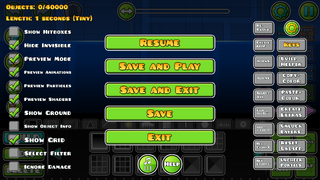 Editor level test pause menu
 -
 Pause menu settings
 -
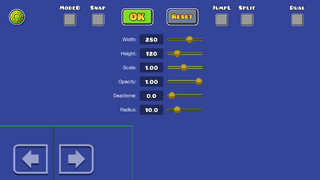 Platformer UI configurator
 -
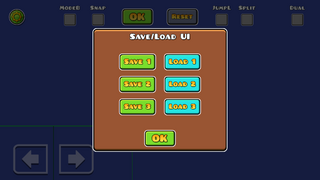 UI profile selection
 -
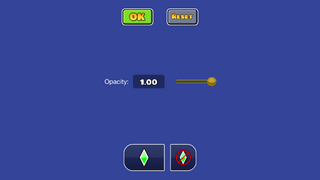 Practice mode UI configurator


